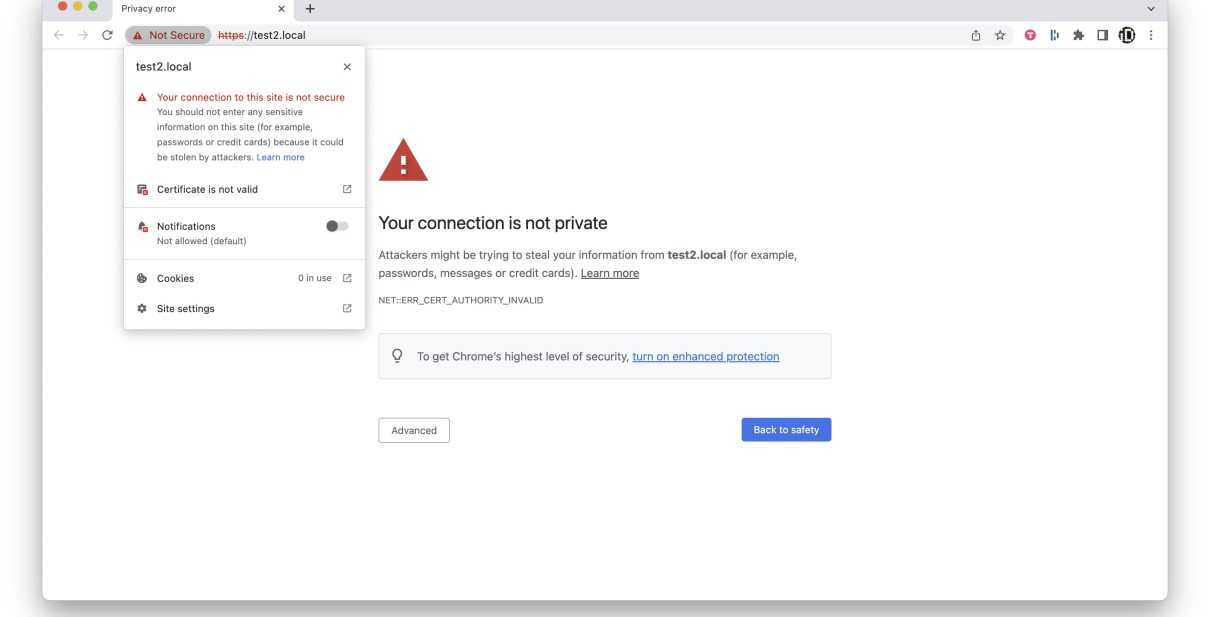
If you’ve ever visited your website and noticed the warning “Not Secure” in the browser address bar, it means your SSL certificate is either missing, expired, or not installed properly. This can scare away visitors and affect your search engine rankings. The good news is, if you’re using cPanel, reinstalling or renewing your SSL certificate is a straightforward process.
In this article, we’ll walk you step by step on how to reinstall an SSL certificate and secure your site in cPanel.
What is an SSL Certificate and Why is it Important?
SSL (Secure Sockets Layer) encrypts the data exchanged between your website and its visitors. With SSL enabled, your website URL starts with https:// instead of http://, and visitors see the padlock icon in the browser.
Without SSL:
Visitors may receive a “Site Not Secure” warning.
Hackers could intercept sensitive data like login details and payment information.
Your SEO rankings could drop, as Google prioritizes HTTPS websites.
Step 1: Log in to Your cPanel
Go to your hosting provider’s cPanel login page.
Enter your username and password.
Once logged in, scroll down to the Security section.
Step 2: Access the SSL/TLS or SSL/TLS Status Tool
In cPanel, SSL management is usually under:
SSL/TLS
SSL/TLS Status
Or Let’s Encrypt™ SSL (depending on your hosting provider).
Click on the option available to you.
Step 3: Uninstall the Old or Expired SSL Certificate (if necessary)
Inside the SSL/TLS section, click on Manage SSL Sites.
Find your domain and check if there’s an old certificate installed.
If expired or broken, click Uninstall.
Step 4: Reinstall or Add a New SSL Certificate
You have two options:
Option A: Use Free AutoSSL (Most Recommended)
In SSL/TLS Status, click Run AutoSSL.
AutoSSL will automatically generate and install a free SSL certificate (powered by Let’s Encrypt or Sectigo).
Wait a few minutes and refresh the page to confirm installation.
Option B: Install a Purchased SSL Certificate
If you bought an SSL certificate, your provider will give you the CRT, Private Key, and CA Bundle.
In the Manage SSL Sites section, paste these details into the fields provided.
Click Install Certificate.
Step 5: Force HTTPS Redirection
Even after installing SSL, your site may still load with http://. To fix this:
In cPanel, go to Domains.
Toggle Force HTTPS Redirect next to your domain.
Now, all traffic will automatically redirect to https://.
Alternatively, you can add the following rule in your .htaccess file:
Step 6: Verify Your SSL Installation
Open your website in a browser and check if the padlock icon appears.
You can also test your SSL using SSL Checker.
Common Issues & Fixes
Mixed Content Errors: Some images, scripts, or CSS may still load via http. Update them to https in your code or use a plugin if you’re on WordPress.
AutoSSL Failed: Check if your domain points to the correct hosting server. Sometimes DNS issues cause SSL installation errors.
Expired Certificate Still Showing: Clear your browser cache and try again.
Final Thoughts
Keeping your SSL certificate active is essential for building trust, protecting user data, and boosting SEO. With cPanel, reinstalling or renewing an SSL certificate is quick and easy—whether you’re using the free AutoSSL option or a premium one.
Make it a habit to check your SSL status regularly, so your visitors always feel safe browsing your website.